 Mod
ModPlayers connect straight to the host's address and TCP port. This works on any copy of the game, including Xbox App, Microsoft Store and Game Pass, but the host's port has to be reachable.
The default port is TCP 25001. The host, every joining player, the firewall rule and the
router rule all have to use the same port.
Hosting
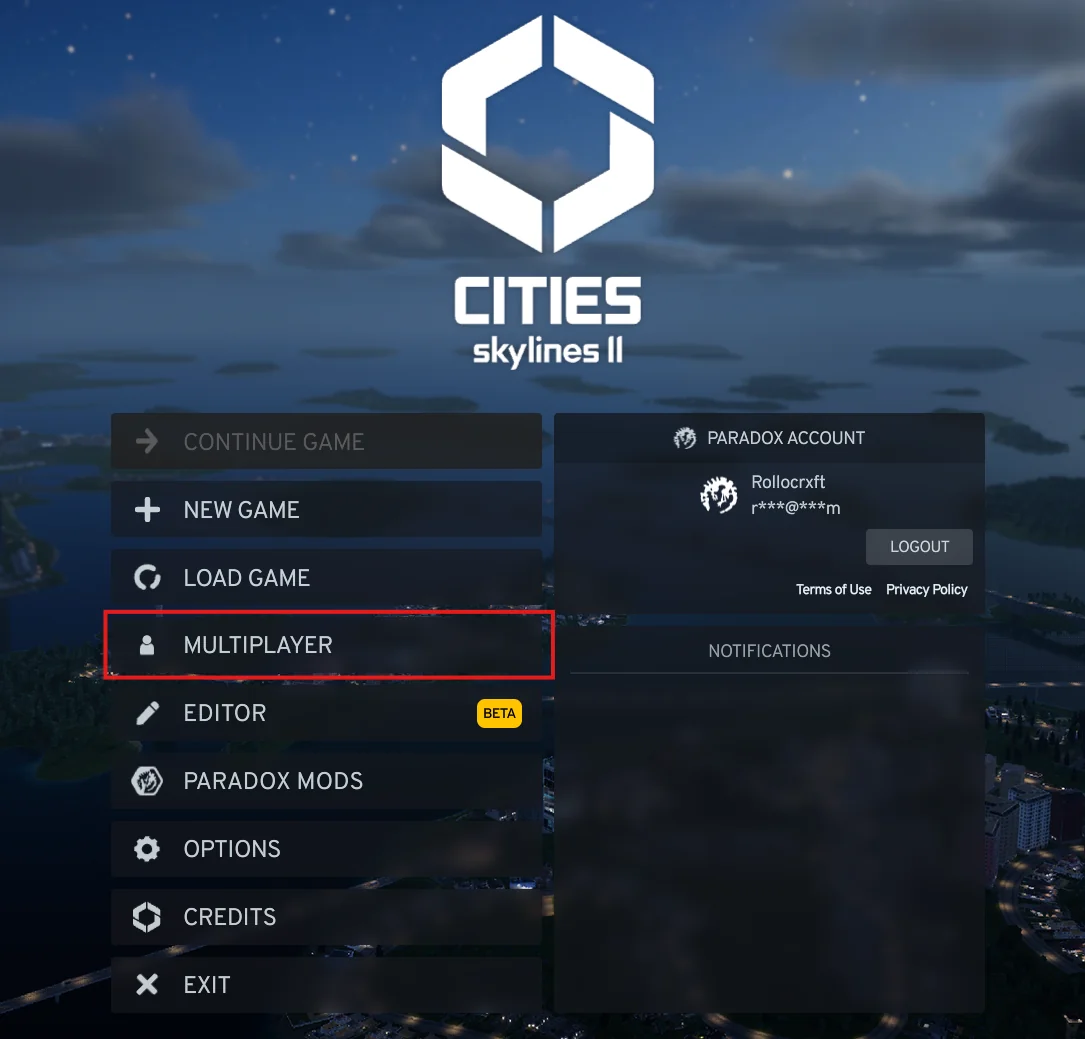
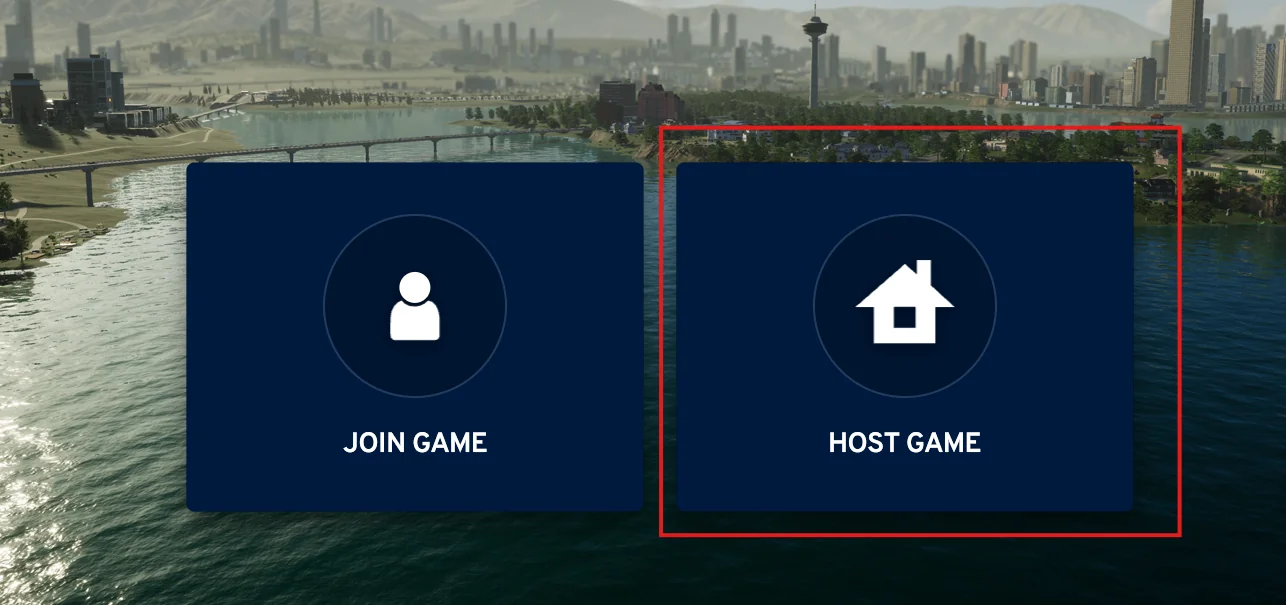
- Open Multiplayer and click Host Game.
- Set the connection type to Direct Connection.
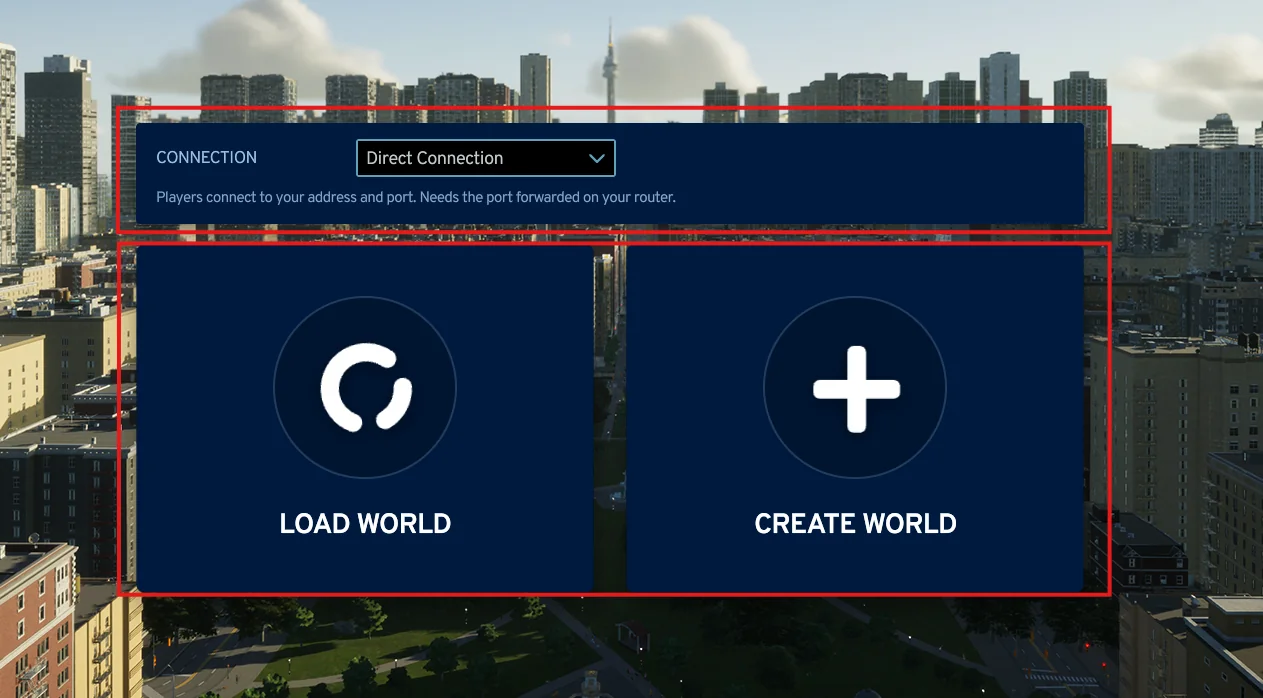
- Load or create your world as usual. The session starts once the city has loaded.
- Share your IP address and port with the other players.
Which address you share depends on where the other players are:
| Players | Address to share |
|---|---|
| Same network (LAN) | Your local IP address, shown in the log when hosting starts or via a Terminal with the command ipconfig |
| Over the internet | Your public IPv4, from api.ipify.org. The port has to be open - see Over the internet |
| Over the internet, using IPv6 | Your IPv6 address, shown in the log when hosting starts. See IPv6 |
| Over Hamachi or another VPN | Your VPN address, for example 25.x.x.x with Hamachi. See Hamachi and other VPNs |
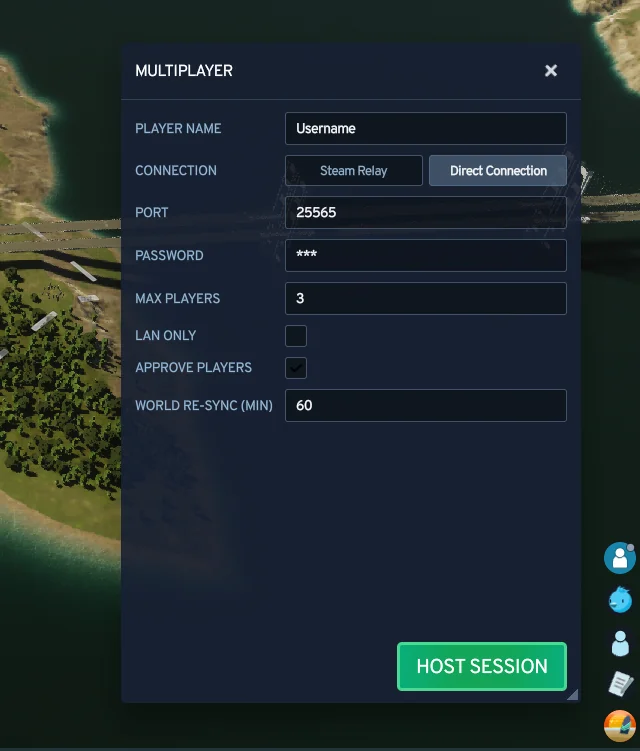
The Host Game screen of the main menu has Port, Password, Approve Players, Simulation Sync, LAN Only and Client Resyncs once Direct Connection is selected. The in-game multiplayer panel has the same settings plus your player name and the player limit. The Host Game tab of the mod options has them too, except Simulation Sync.
Joining
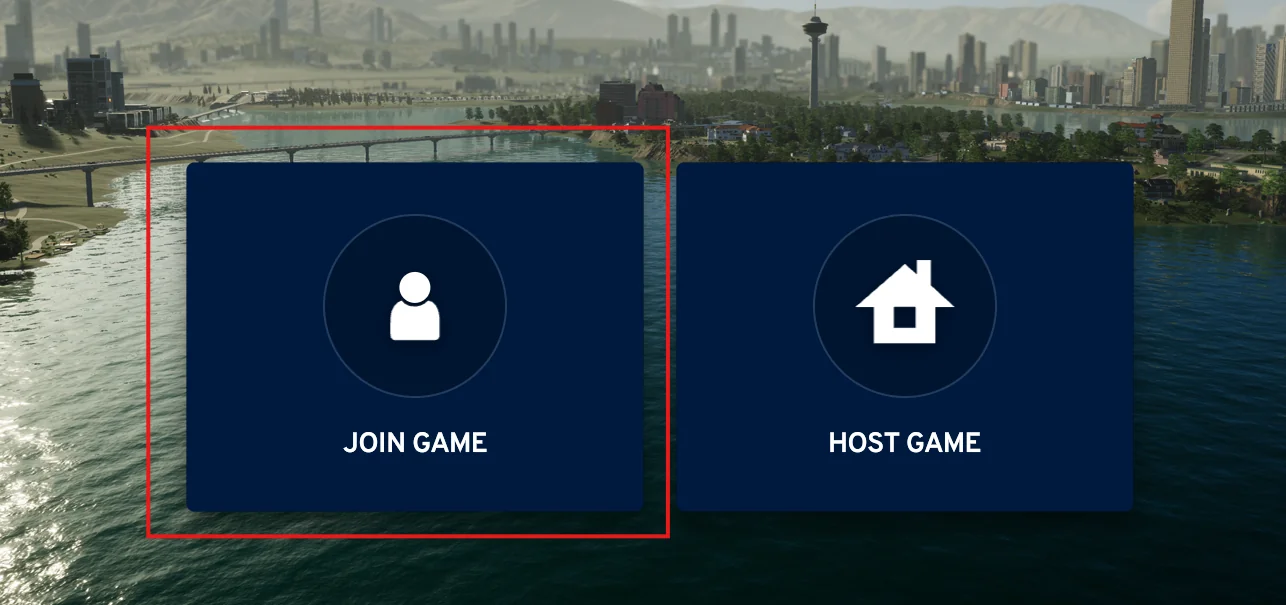
- Open Multiplayer and click Join Game.
- Set the connection type to Direct Connection.
- Enter the host's address and port, your player name, and the password if there is one.
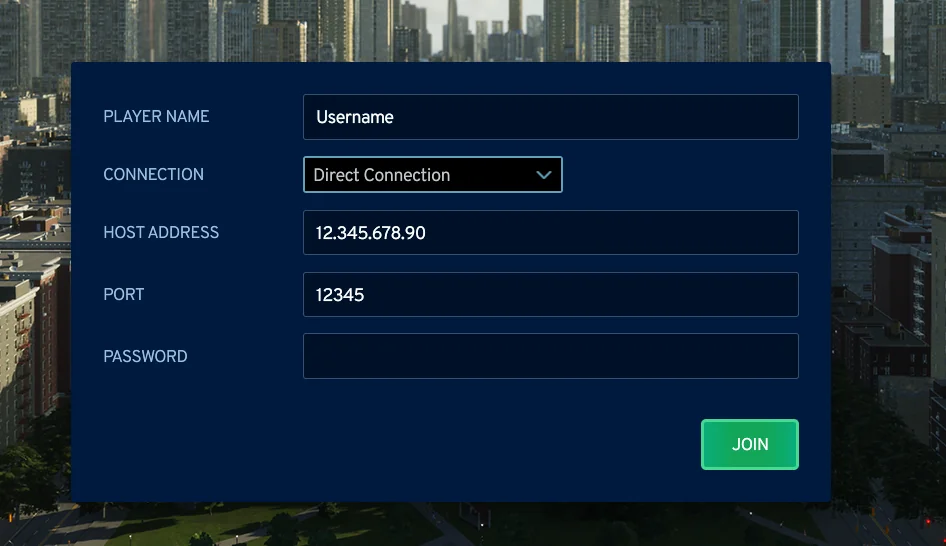
- Click Join and wait while the host's city downloads.
A password is required
A host reachable from the internet accepts anyone who finds the port, and everyone who joins downloads a copy of the city. Hosting over the internet therefore needs a server password of at least 8 characters. Without one, use Steam Relay or switch LAN Only on to accept local players only.
Playing on the same network
Nothing has to be forwarded. Joining players use the host's local IP address and the same port. The host can switch LAN Only on to refuse everything that is not from the local network.
Over the internet
When you host with LAN Only off, the mod asks your router to open the port by itself (UPnP). Whether the router agreed is written to the mod's log - see Let the mod open the port. If it did not, forward the port by hand with Set up port forwarding.
The chat message "Friends from another network can only join if you forward TCP port ..." is shown at every start; it does not mean the automatic attempt failed.
Playing over Hamachi or another VPN
With Hamachi, Radmin VPN, ZeroTier or Tailscale, all players share one virtual network and nothing has to be forwarded. Hamachi and Radmin VPN addresses count as internet addresses, so LAN Only has to be off for them. See Hamachi and other VPNs.
IPv6
Direct connections work over IPv6 as well as IPv4. A host accepts both at the same time, so there is nothing to switch on.
IPv6 helps when your internet provider shares one public IPv4 address between many customers (often called CGNAT, common on fibre and mobile connections). Port forwarding is impossible there, but an IPv6 address reaches your PC directly.
Hosting over IPv6
- Start hosting as usual. The log lists your IPv6 addresses in the line
Players with IPv6 join via: .... You can also runipconfigin a Terminal and use the entryIPv6 Address. Do not useTemporary IPv6 Address, which changes regularly, orLink-local IPv6 Address, which starts withfe80and only works inside your network. - IPv6 needs no port forwarding, but most routers block incoming IPv6 connections by default. In your router's IPv6 firewall settings (sometimes called IPv6 port sharing or a pinhole), allow incoming TCP on your port to your PC. The game also has to be allowed through the Windows Firewall.
- Share your IPv6 address and port. A server password of at least 8 characters is still required, as for any direct host reachable from the internet.
With LAN Only switched on, players from your own network can join over IPv6 too.
Joining over IPv6
Your own internet connection needs IPv6 as well. You can check it at test-ipv6.com. Enter the host's IPv6 address in Host Address, in one of two ways:
- The address alone, for example
2001:db8::1, with the port in the Port field. - The address in square brackets, followed by the port, for example
[2001:db8::1]:25001. A port written this way replaces the Port field.